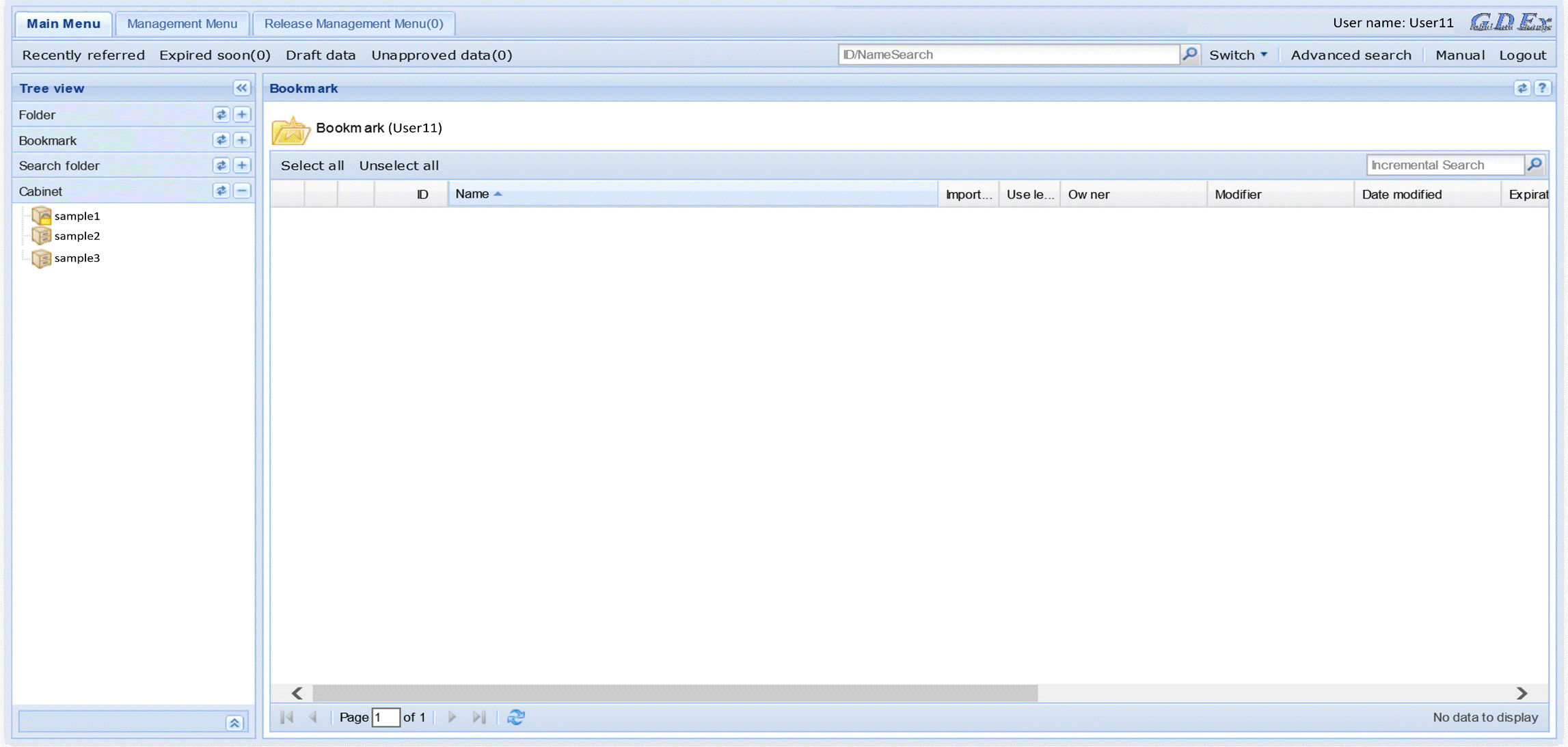
Using open source software (OSS) to issue a one-time password (first login)
Introduction
- We do not impose restrictions on the use of open-source software (OSS) or free applications; however, our company does not take responsibility for their usage.
- As an example of use, only the add-on "Authenticator 2FA Client" of Microsoft Edge is prepared as an introduction procedure.
- This manual was created based on information as of June 1, 2025.
- Please always use the latest version.
- GDEx support is only for "multi-factor reset". Known issues will be published in the FAQ.
Using open source software (OSS) to issue a one-time password (first login)
The same procedure applies to the first login after the reset.
(1) Log in to the GDEx Internet site.
https://gdex.b2b.mazda.co.jp/gdex/
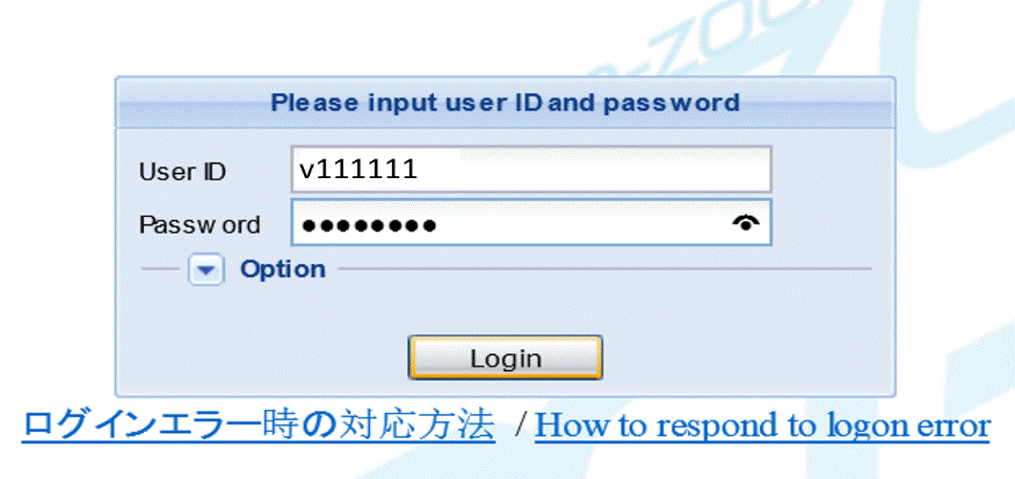
(2) Enter your login ID and password on the login screen to log in.
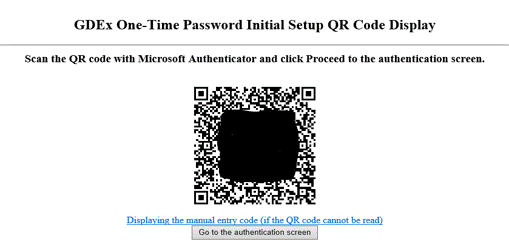
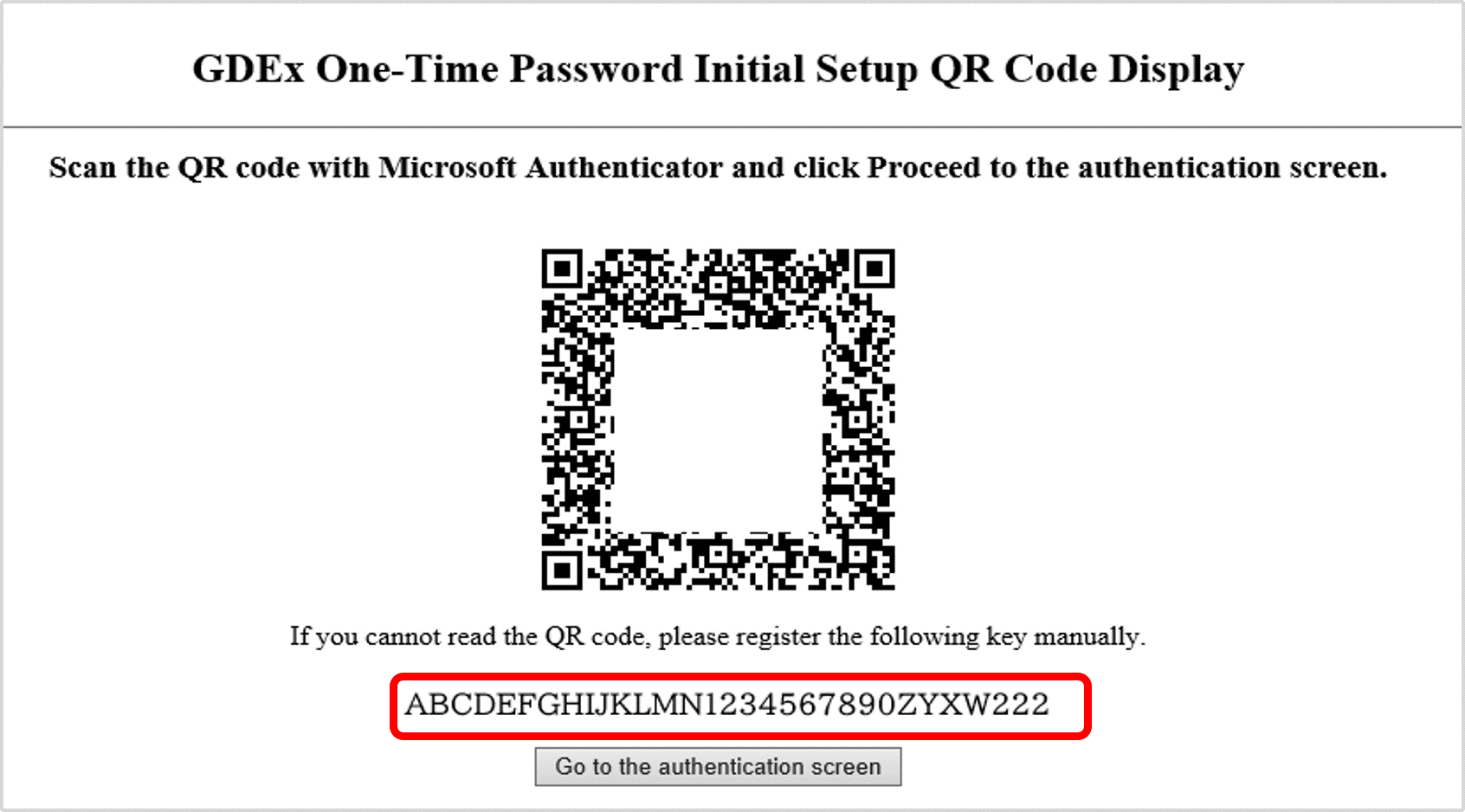
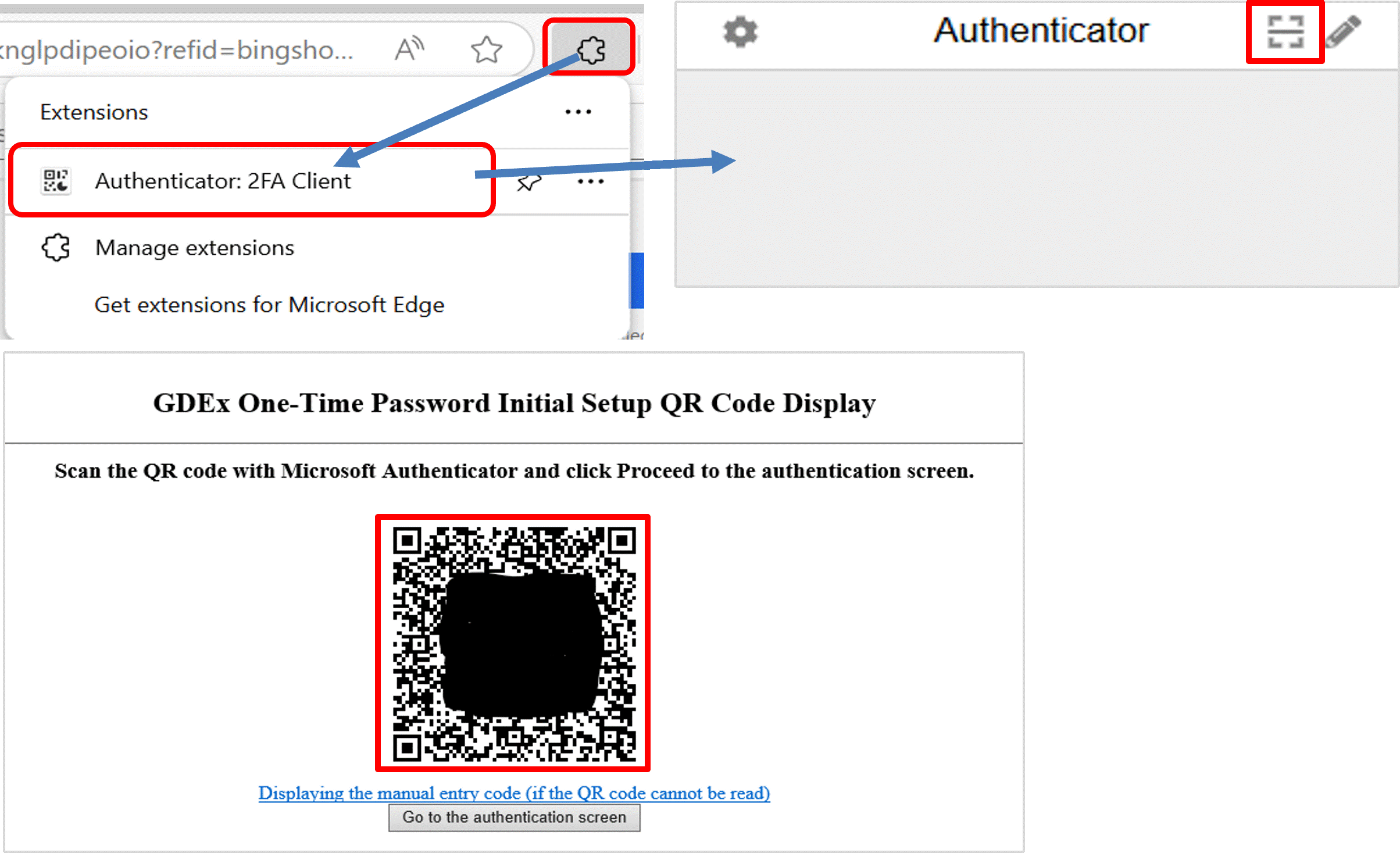
(3) When the GDEx one-time password initial setup QR code display screen appears, scan it using the authentication software on the PC.
Here, we will guide you using the Microsoft Edge add-on 'Authenticator 2FA Client' as an example.
Also, depending on the PC you are using, the available registration methods may be restricted, so please register using one of the three methods described below.
(4) a) If you want to enter the key manually
① Click 'Display manual entry code (if the QR code cannot be scanned)' below the QR code to reveal the key for manual entry.
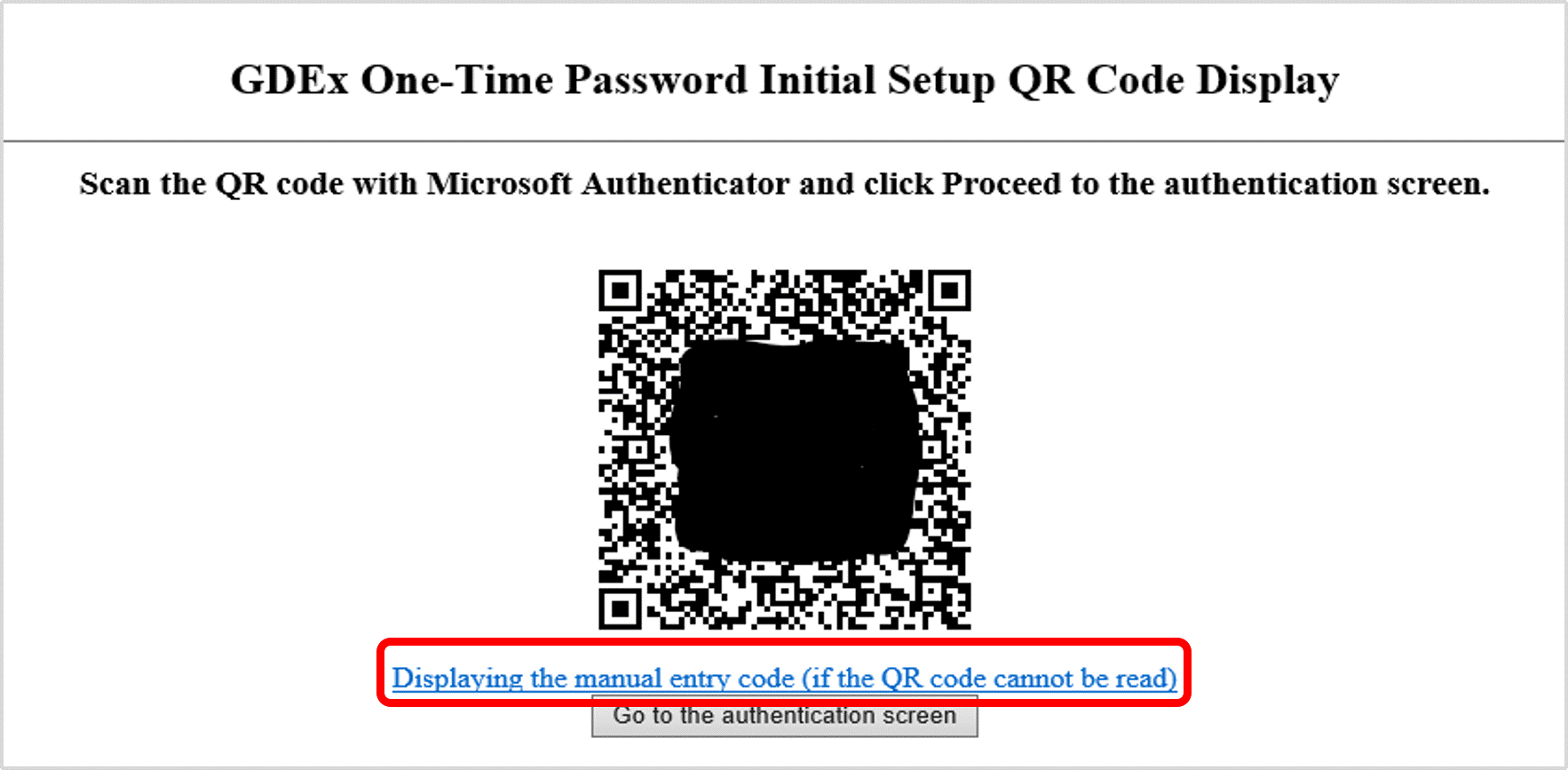
② Copy the displayed key.
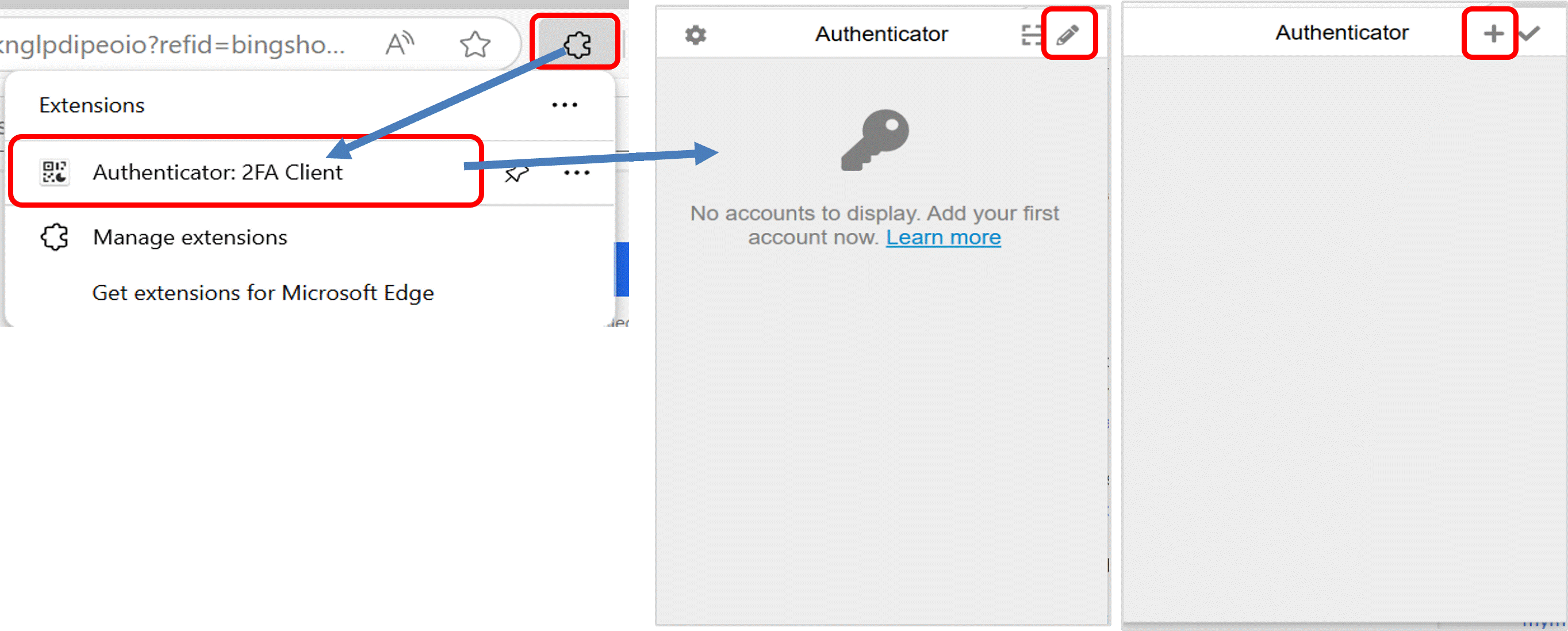
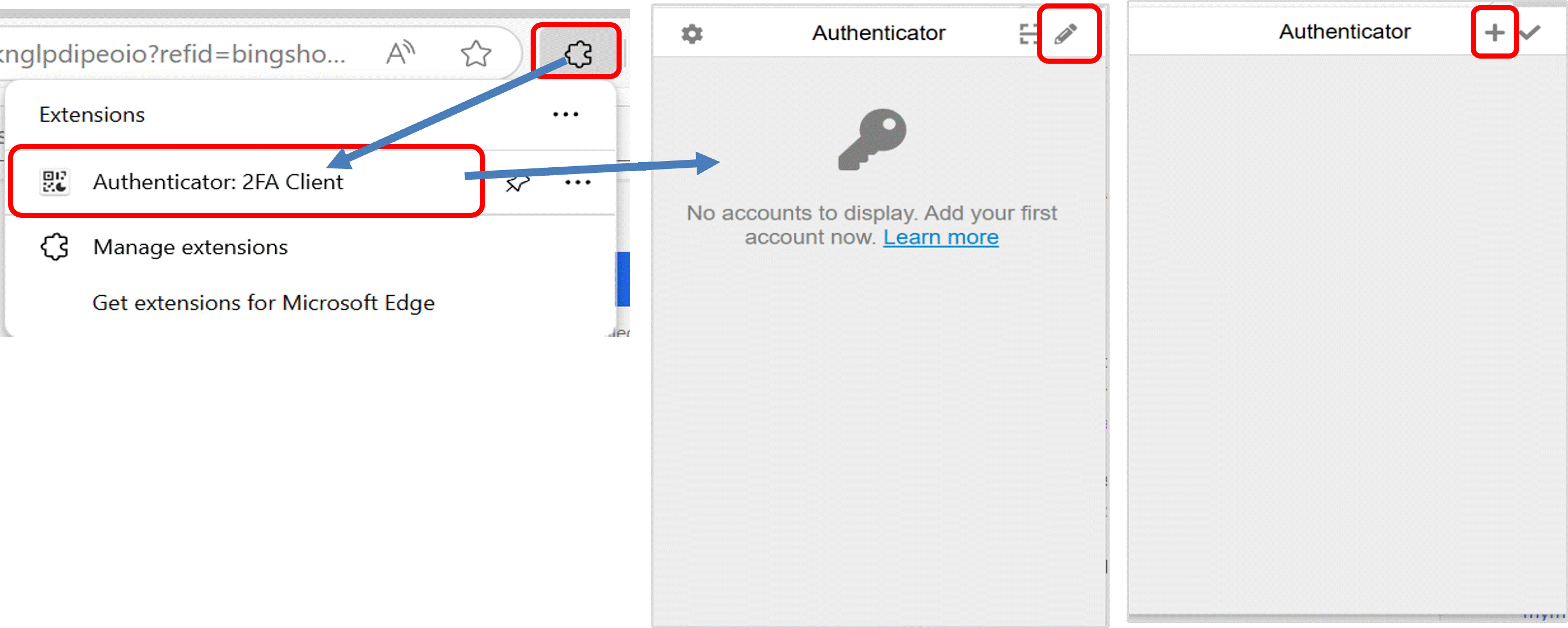
③ Start Authenticator 2FA Client on the screen where the QR code is displayed, click the 'pencil' icon in the upper right corner, and then click the '+' icon.
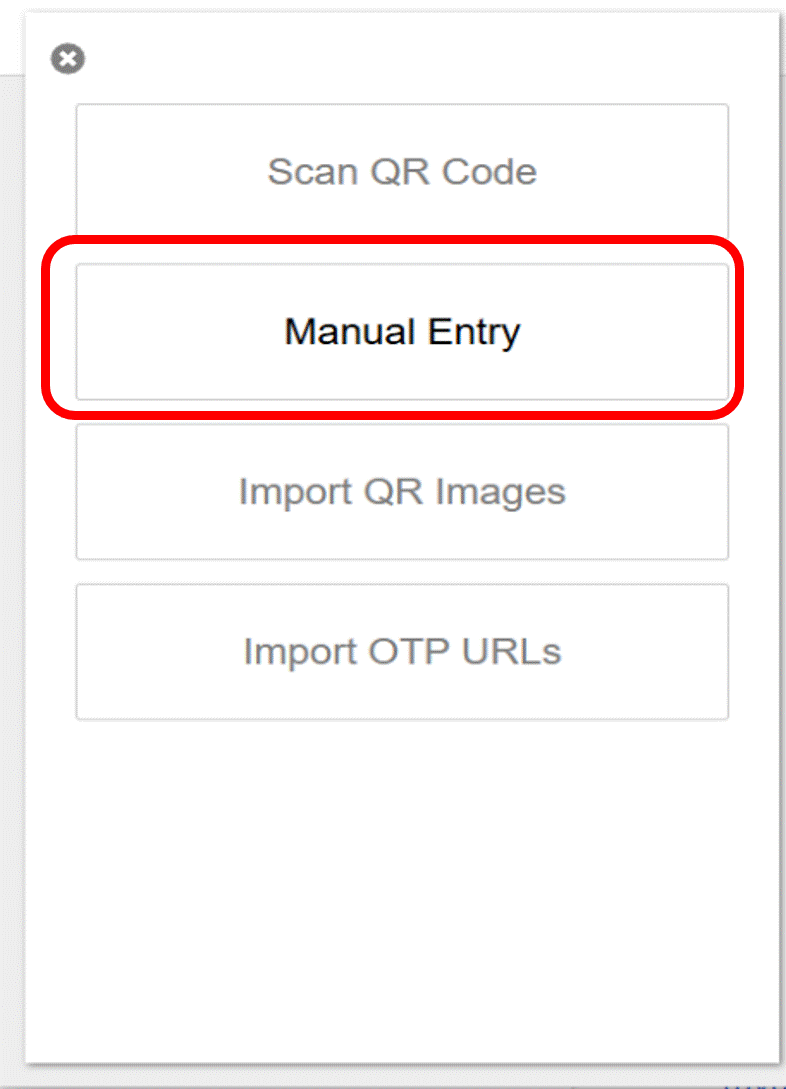
④ When the following screen appears, select 'Manual Entry'.
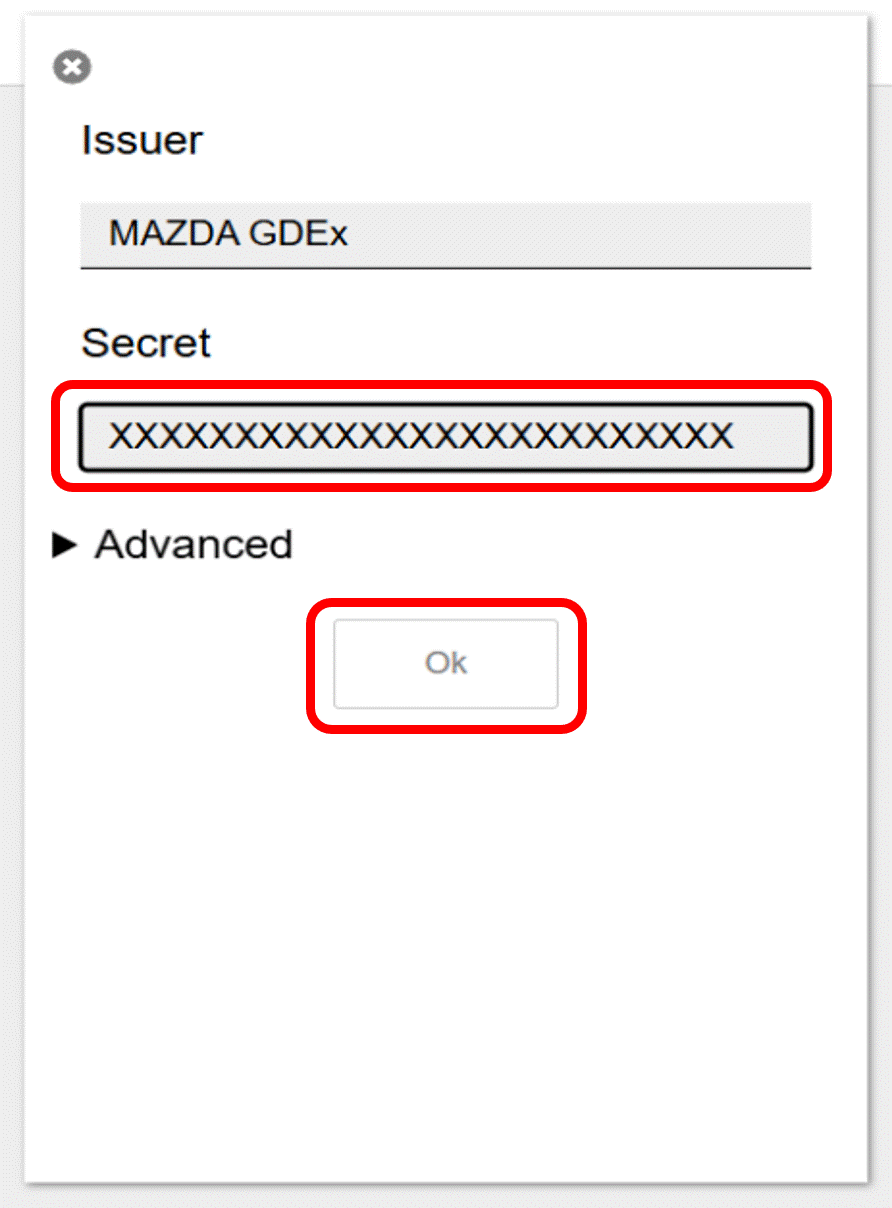
⑤ Paste the key copied in step (2) into the 'Secret' field on the screen that appears after selecting 'Manual Entry'.
"Issuer" should be "MAZDA GDEx"
After entering 'Issuer' and 'Secret,' click 'OK'.
⑥ Registration is complete when the logged-in user's one-time password appears.

b) When using mouse capture
① Start Authenticator 2FA Client on the screen where the QR code is displayed, click the 'Scan QR Code' icon in the upper right corner, and use the mouse to select the QR code range.
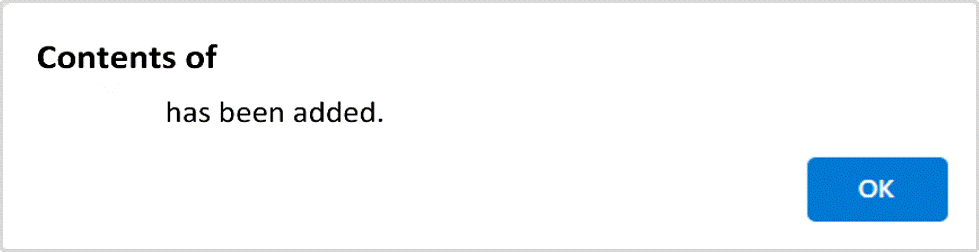
② Registration is complete when the dialog displays ' has been added.
c) When saving the QR code using a screen capture
① Capture the screen displaying the QR code using the PrtSc key or similar, trim it to show only the QR code in Paint, and save the file.
② Start Authenticator 2FA Client on the screen where the QR code is displayed, click the 'pencil' icon in the upper right corner, and then click the '+' icon.
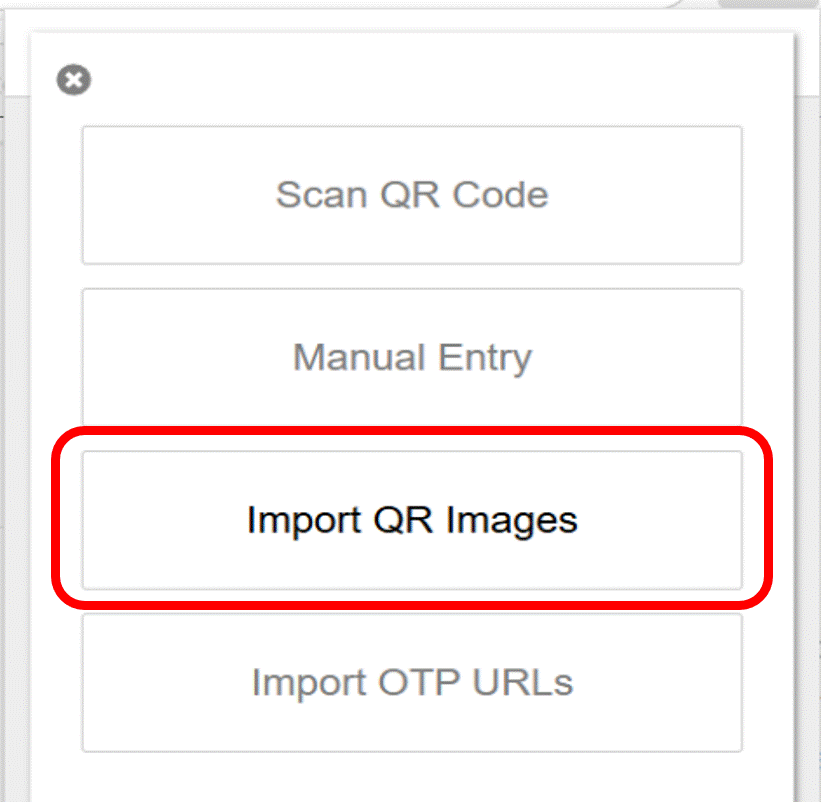
③ When the following screen appears, select 'Import QR Code Image'.
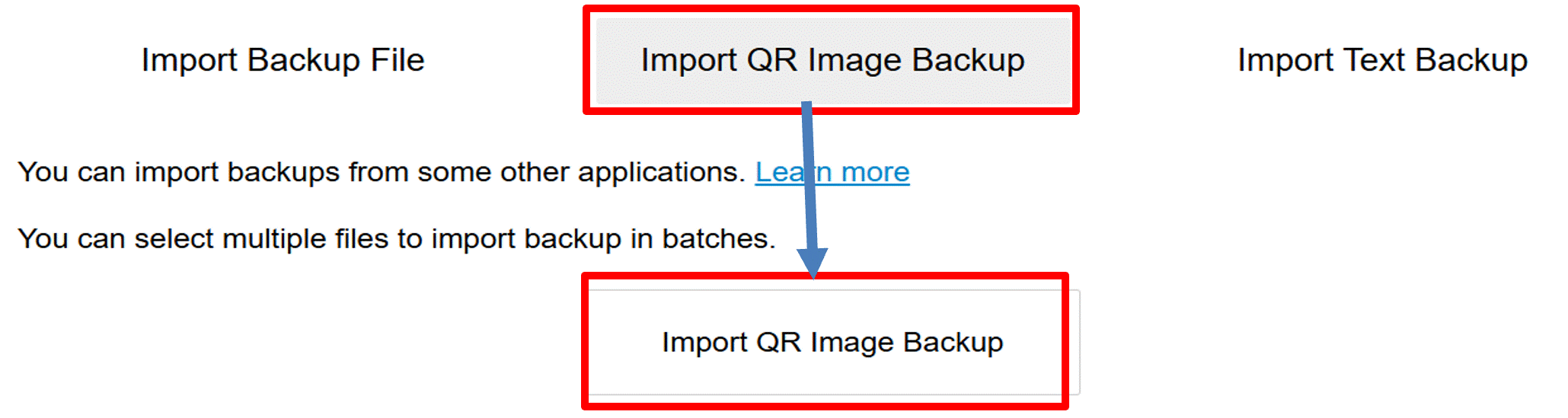
④ "When the following screen appears, click 'Import QR Image Backup,' select the saved QR image, and import it.
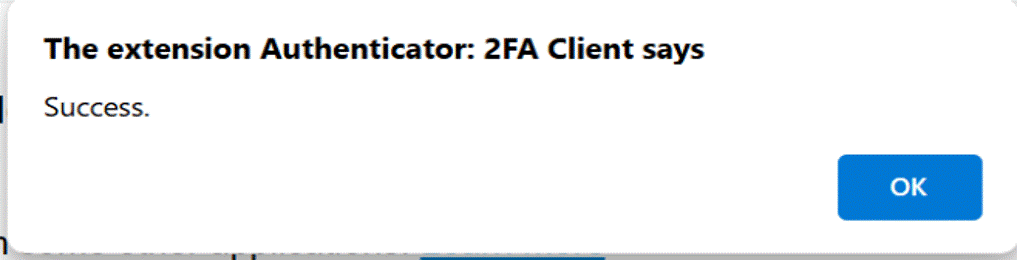
⑤ Registration is complete when the dialog displays 'Success'.
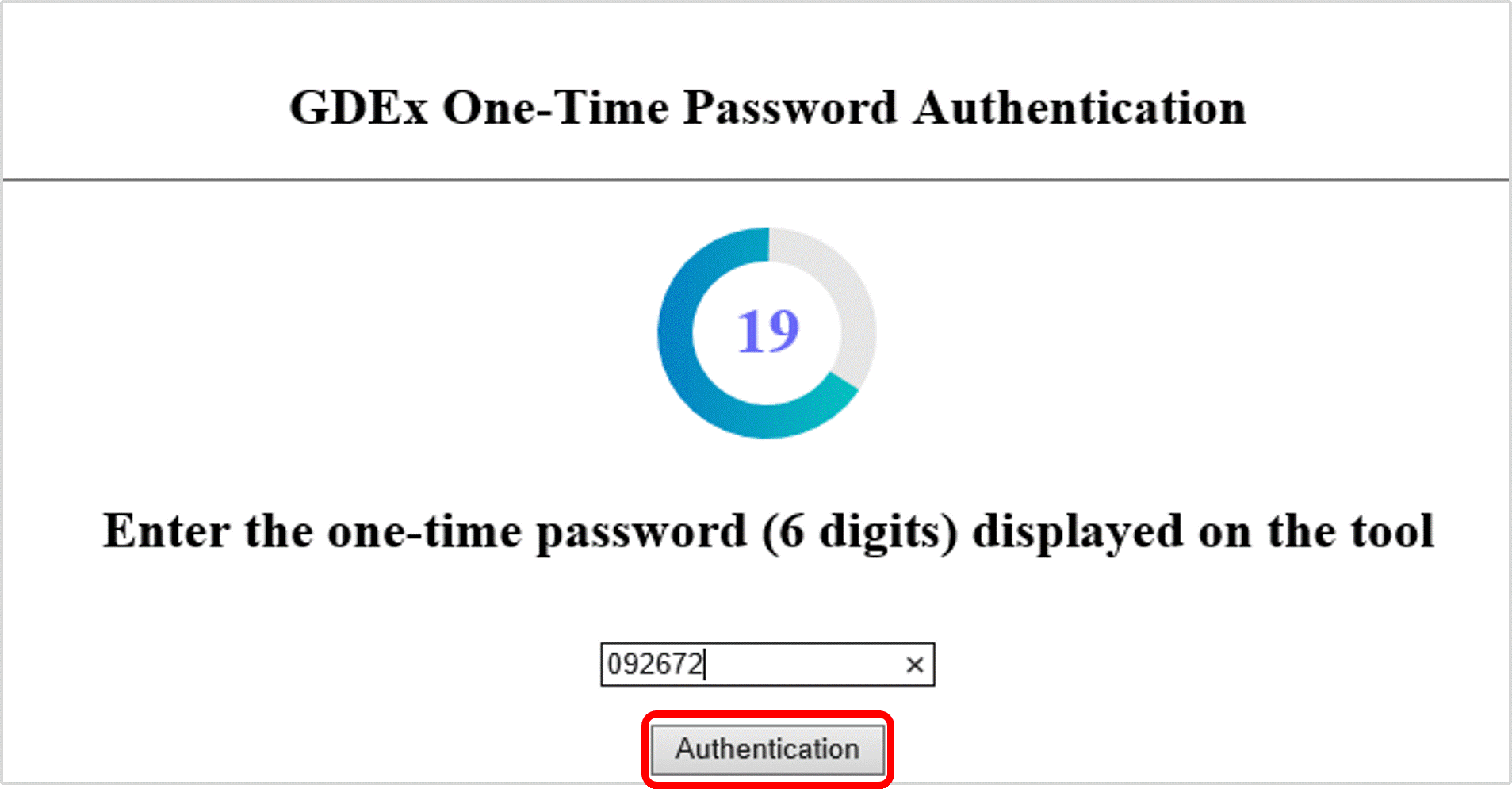
⑥ When the GDEx one-time password authentication screen appears, enter the six-digit number displayed on the PC into the text box.
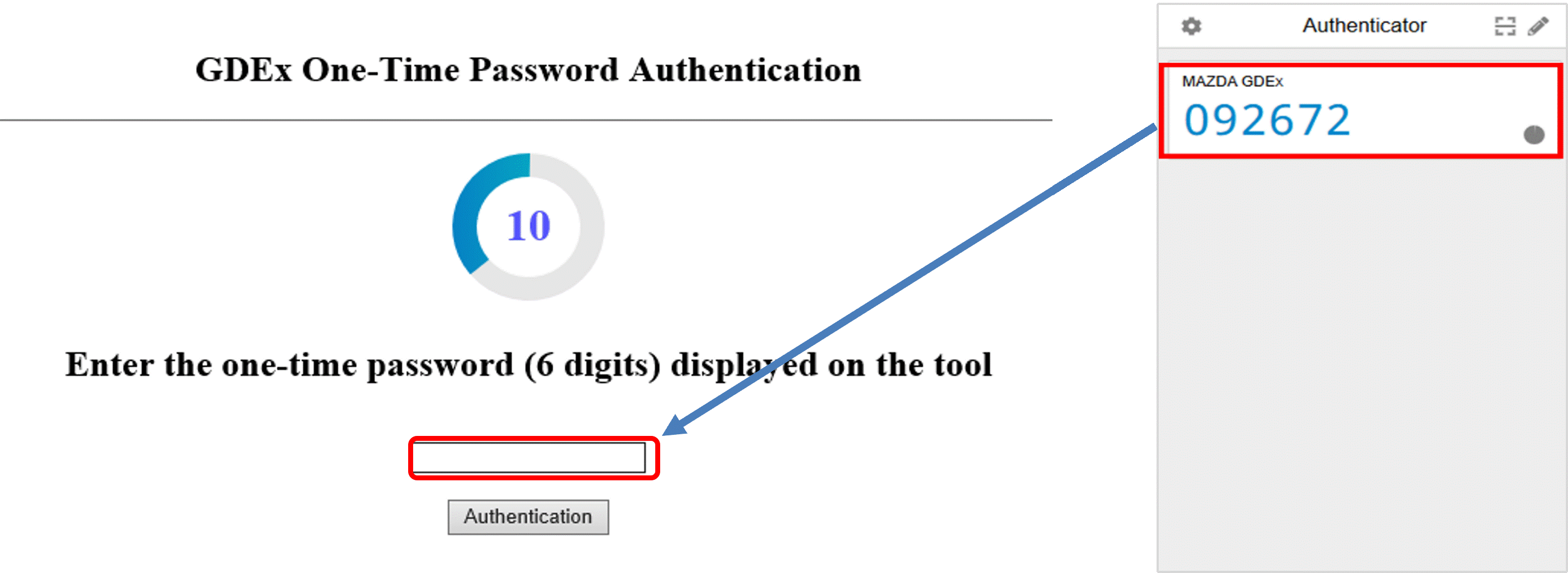
⑦ After entering the one-time password, click the authentication button before 30 seconds elapse.
Note: If 30 seconds pass after the screen appears and the number inside the circle reaches 0, the screen will refresh, and the entered number will be erased.
Please click the authentication button within the time limit.
If you don't make it in time, enter the number displayed on the PC again.
⑧ When the GDEx portal screen appears, TOTP authentication has been successfully completed. You can now use GDEx as usual.